![Cordinate_Logo.svg]](https://www.coredinate.de/hubfs/Website%20(coredinate.de)/Images/Logos/Cordinate_Logo.svg)
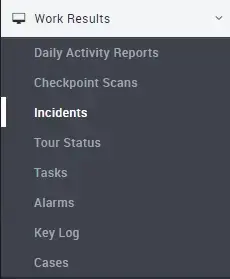
This article explains how to record events in the portal. Please log in to the portal with the appropriate rights. We assume that you have made all the necessary settings. Click on Work results in the main menu on the left and then on Events.
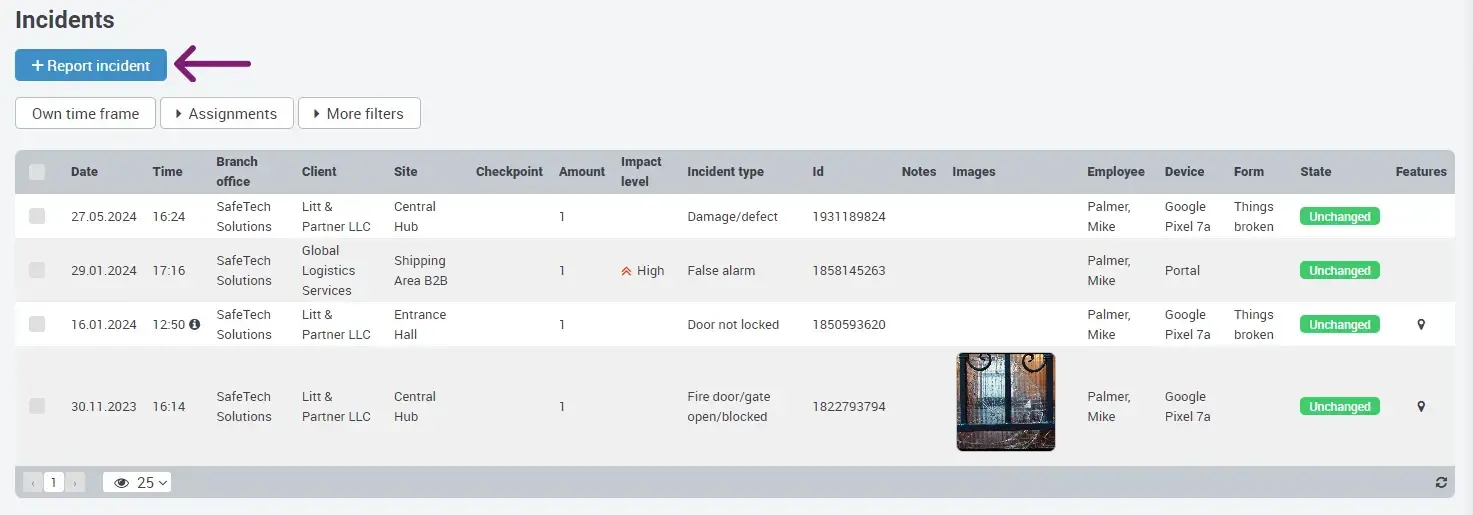
Then click on the blue + Report incident button at the top left.
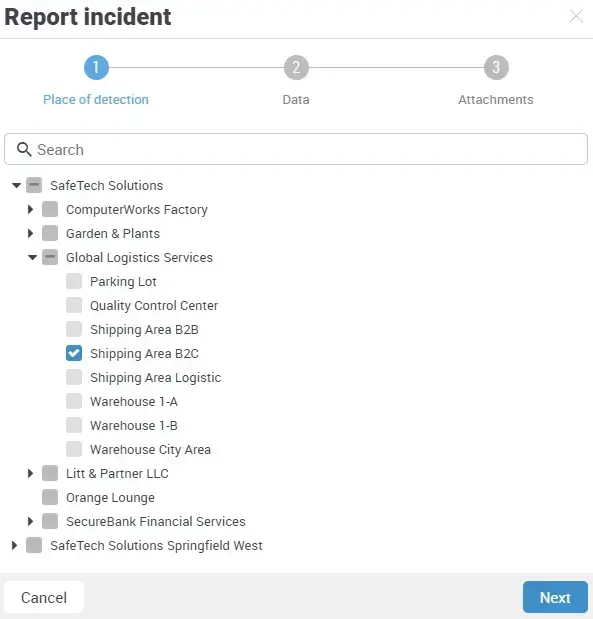
In the following pop-up, please select the customer and the object where the incident is to be recorded.
You must then select the incident type.
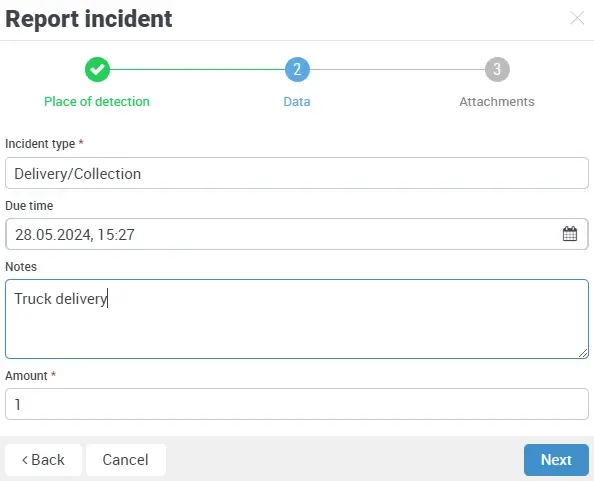
Once this is done, you can enter a description if necessary. After clicking on Next:
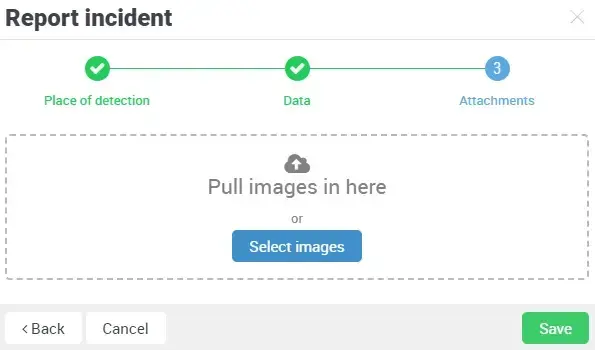
You now have the option of adding one or more images if required.
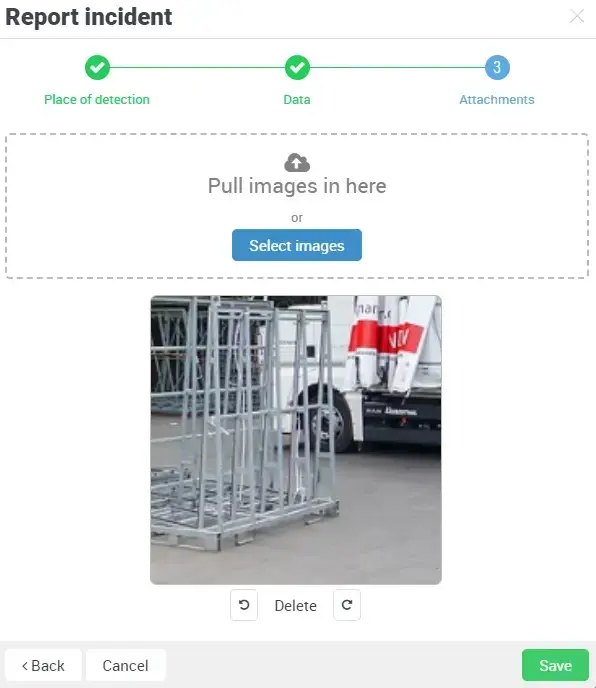
Then click on Save. Your event is now saved in the portal, just as if the employee had recorded it using the app.